> ## Documentation Index
> Fetch the complete documentation index at: https://docs.prelude.so/llms.txt
> Use this file to discover all available pages before exploring further.
# Silent Verification
> Allow your users to onboard faster without the need for manually entering a verification code.
Silent Verification lets you verify users seamlessly without sending them a text message or asking them to
enter a verification code within the application.
This feature is available for Android, iOS, Web and React Native applications and requires implementation on both
the back-end and front-end sides. It requires the use of our [Frontend SDKs](/introduction/frontend-sdks/introduction).
This verification method is only available in select locations. Some carriers may require manual registration. For support on this feature, please [contact us](mailto:support@prelude.so).
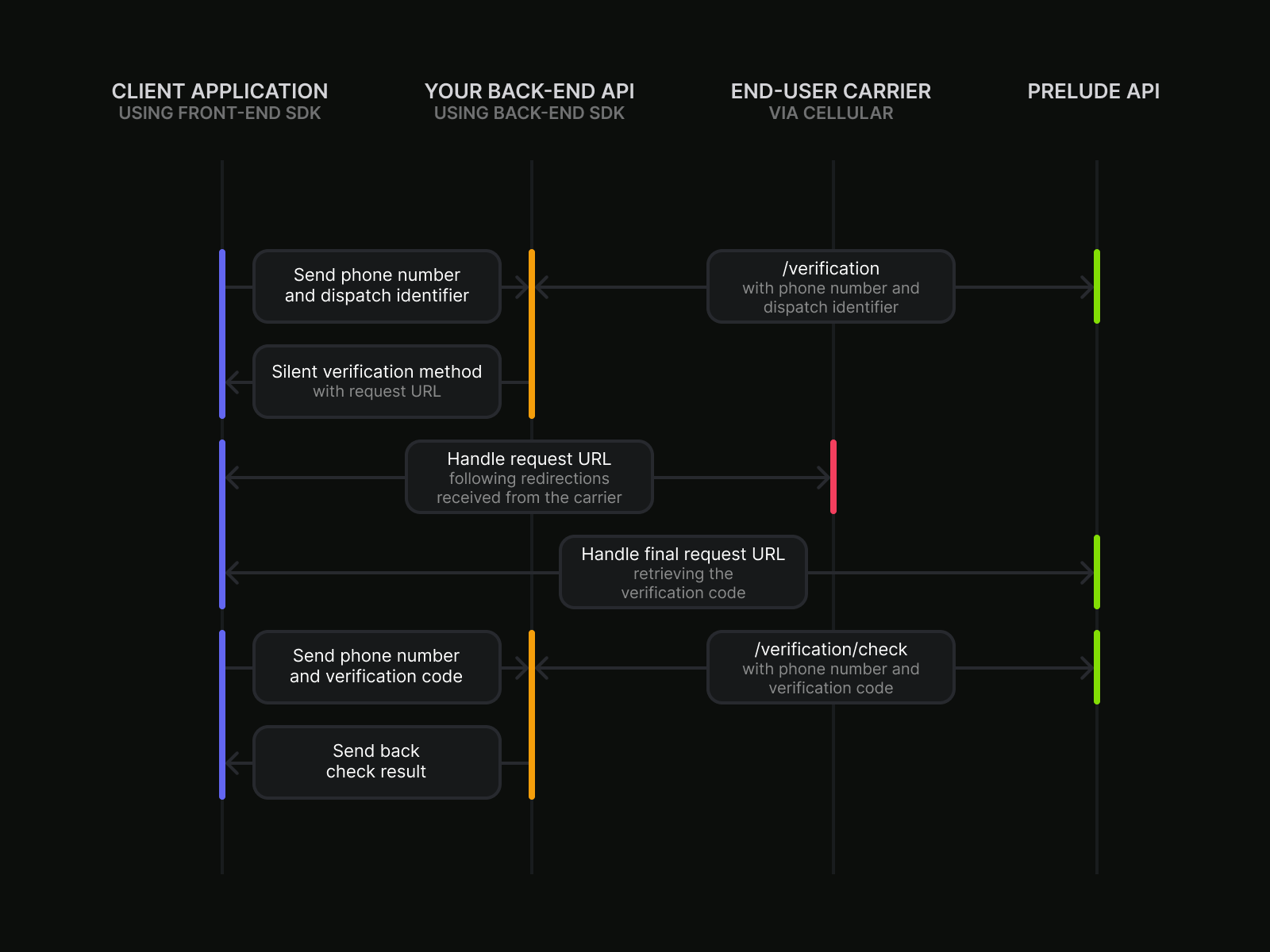
Silent Verification works by coordinating between your application integrating the Prelude frontend SDKs, Prelude's Verify API, and your end-user's carrier APIs.
An active cellular connection on your end-user's device is required for this to work properly.
# Prerequisites
Before integrating Silent Verification, make sure you have:
* A Prelude account with Silent Verification enabled. [Contact our support team](mailto:support@prelude.so) if it isn't.
* Integrated one of our [Frontend SDKs](/introduction/frontend-sdks/introduction) (iOS, Android, Web, or React Native) — silent verification is not reachable through the backend SDKs alone.
* An `sdk_key` from the **Configure > Keys** page of the [Prelude dashboard](https://app.prelude.so/). This is a separate credential from your backend `API_KEY`.
* An active cellular connection on the end-user's device at verification time. Wi-Fi-only sessions fall back to message-based verification automatically.
# Integration
This guide explains how to handle a verification flow that tries a “silent” method first, while handling
fallback to a SMS (or similar) if that fails. The goal is to reduce user friction while maintaining
robustness.
1. Integrate the Prelude SDK into your mobile application and advertise Silent Verification in the implemented
features (see examples below). Otherwise, the system will default to message-based verification, even if
Silent Verification is supported.
2. Trigger a verification request and forward it to the Prelude API along with a dispatch
identifier retrieved via the `dispatchSignals()` SDK method. This will return the verification method to
be used.
3. Look at the method returned by the Prelude API. If “silent”, continue with the Silent Verification flow. If
not, skip ahead to step 7.
4. Attempt to verify silently by calling the `verifySilent()` SDK method, providing the request URL received
from the previous API call. This happens in the background without requiring any user input.
5. Upon success, take the code received and skip ahead to step 8. If the silent verification fails (e.g. due
to network issues, or mismatching phone number), proceed to next step.
6. Trigger another verification request. The Prelude API should now return a more conventional method like
"message" (e.g., SMS or WhatsApp).
7. Once a "message" method is confirmed, update the UI to show an input field where the user can manually
enter the received verification code.
8. Perform a follow-up “check” call to the Prelude API sending back the verification code received either via
the silent verification method or via the message one.
By following this process, you can leverage the Silent Verification feature to enhance your onboarding flow’s
user experience, while maintaining compatibility with carriers and regions not supporting it.
Some local legislation may require you to inform the end-user about the fact that the Silent Verification
process will rely on their carrier network to verify they own the phone number.
In this case, it is strongly advised to display a message similar to the following:
> Automated phone number verification may use your carrier network, if supported. Data rates may apply.
## Example
Your mobile application must integrate with your back-end API. It'll be your application's responsibility to
handle start the verification process and handle the response from your back-end API.
In this example we imagine that your back-end API exposes a `/verify` endpoint that accepts a `POST` request
with the following body:
```json theme={null}
{
"phone_number": "+33612345678",
"dispatch_id": "01985624-6a10-79ea-8d48-5a6b6d8efef5"
}
```
In response to that request it returns the following body:
```json theme={null}
{
"method": "silent",
"request_url": "https://carrier-api.example.net/path/to/endpoint"
}
```
To check the verification code it exposes a `/check` endpoint that accepts a `POST` request with the following
body:
```json theme={null}
{
"phone_number": "+33612345678",
"verification_code": "12345678"
}
```
For the sake of this example, we assume having an API client for your back-end called `backendClient` that
exposes both `verify` and `check` endpoints as methods.
It is recommended to integrate the signals dispatching at the beginning of the onboarding flow, as soon as
it is known that the phone number will be prompted (in case network connectivity could delay their
collection). It will then be required to forward the dispatch identifier along with the verification
request.
Not doing so will make the system automatically fallback to a regular message-based verification even if
the phone number is known to support Silent Verification, as cellular connectivity may not be available.
Locate your SDK key in your [Prelude Dashboard](https://app.prelude.so/) settings. For additional implementation details, refer to the
front-end SDK documentation specific to your platform.
```swift Swift theme={null}
// The Prelude iOS SDK defines scopes when dispatching the signals. For anti-fraud purposes, it is recommended
// to use the `.full` scope (the default as shown here) during the onboarding process.
// Initialize the Prelude client SDK and submit the signals
// Make sure to configure the SDK enabling the Silent Verification feature. Not doing
// so will make the system automatically fallback to a regular message-based verification.
let configuration = Configuration(
sdkKey: "sdk_XXXXXXXXXXXX",
implementedFeatures: [
.silentVerification,
]
)
let prelude = Prelude(configuration)
let dispatchID = try? await prelude.dispatchSignals()
if let dispatchID {
// Pass the phone number and dispatch id to your back-end API
let verifyResponse = try await backendClient.verify(phoneNumber: phoneNumber, dispatchId: dispatchID)
if verifyResponse.method == "silent" {
// If supported, start the silent verification
let verificationCode = try await prelude.verifySilent(url: URL(string: verifyResponse.requestUrl)!)
// Call your back-end with the verification code
let checkResponse = try await backendClient.check(phoneNumber: phoneNumber, verificationCode: verificationCode)
// TODO Handle the check response to update your UI accordingly and continue the onboarding flow.
} else {
// If silent is not supported,
// fallback to the default verification method
}
}
```
```kotlin Kotlin theme={null}
// This sample uses the Kotlin Coroutines API of the Prelude SDK.
// Initialize the Prelude client SDK and submit the signals.
// Make sure to configure the SDK enabling the Silent Verification feature. Not doing
// so will make the system automatically fallback to a regular message-based verification.
val prelude = Prelude(Configuration(
context = context,
sdkKey = "sdk_XXXXXXXXXXXXXXXX",
implementedFeatures = listOf(Features.SilentVerification),
)
)
yourScope.launch {
prelude
.dispatchSignals()
// Pass the phone number and dispatch id to your back-end API
.mapCatching { dispatchId -> backendClient.verify(phoneNumber, dispatchId).getOrThrow() }
.mapCatching {
if (it.method == "silent") {
// If supported, start the silent verification
prelude.verifySilent(URL(it.requestUrl)).getOrThrow()
} else {
// If silent is not supported, fallback to the form for the user to enter the code
throw Exception("Invalid verification method (${it.method}). Expected 'silent' in this sample.")
}
}.mapCatching {
// Call your back-end with the verification code
val checkResponse =
backendClient.check(phoneNumber = phoneNumber, code = it).getOrThrow()
// TODO Handle the check response to update your UI accordingly and
// continue the onboarding flow.
}.onFailure {
// TODO handle error
}
}
```
```TypeScript Expo (React Native) theme={null}
// This sample uses the Expo module of the Prelude SDK.
// It shows how you could implement silent verification in a simple Button. For the sake of simplicity
// this sample does not show any input validation, error handling, or UI updates.
// Make sure to pass the `PreludeReactNativeSdk.Features.SilentVerification` flag in the
// dispatchSignals call to notify that you want to allow Silent Verification. Not passing this
// flag will make the system automatically fallback to a regular message-based verification.
# Frontend SDKs
Explore how you can add silent verification to your application with our [Frontend SDKs](/introduction/frontend-sdks/introduction).
Learn how to integrate the Web SDK into your application.
Learn how to integrate the Android SDK into your application.
Learn how to integrate the iOS SDK into your application.
Learn how to integrate the React Native SDK into your application.
Learn how to integrate the Flutter SDK into your application.
 # Prerequisites
Before integrating Silent Verification, make sure you have:
* A Prelude account with Silent Verification enabled. [Contact our support team](mailto:support@prelude.so) if it isn't.
* Integrated one of our [Frontend SDKs](/introduction/frontend-sdks/introduction) (iOS, Android, Web, or React Native) — silent verification is not reachable through the backend SDKs alone.
* An `sdk_key` from the **Configure > Keys** page of the [Prelude dashboard](https://app.prelude.so/). This is a separate credential from your backend `API_KEY`.
* An active cellular connection on the end-user's device at verification time. Wi-Fi-only sessions fall back to message-based verification automatically.
# Integration
This guide explains how to handle a verification flow that tries a “silent” method first, while handling
fallback to a SMS (or similar) if that fails. The goal is to reduce user friction while maintaining
robustness.
1. Integrate the Prelude SDK into your mobile application and advertise Silent Verification in the implemented
features (see examples below). Otherwise, the system will default to message-based verification, even if
Silent Verification is supported.
2. Trigger a verification request and forward it to the Prelude API along with a dispatch
identifier retrieved via the `dispatchSignals()` SDK method. This will return the verification method to
be used.
3. Look at the method returned by the Prelude API. If “silent”, continue with the Silent Verification flow. If
not, skip ahead to step 7.
4. Attempt to verify silently by calling the `verifySilent()` SDK method, providing the request URL received
from the previous API call. This happens in the background without requiring any user input.
5. Upon success, take the code received and skip ahead to step 8. If the silent verification fails (e.g. due
to network issues, or mismatching phone number), proceed to next step.
6. Trigger another verification request. The Prelude API should now return a more conventional method like
"message" (e.g., SMS or WhatsApp).
7. Once a "message" method is confirmed, update the UI to show an input field where the user can manually
enter the received verification code.
8. Perform a follow-up “check” call to the Prelude API sending back the verification code received either via
the silent verification method or via the message one.
By following this process, you can leverage the Silent Verification feature to enhance your onboarding flow’s
user experience, while maintaining compatibility with carriers and regions not supporting it.
# Prerequisites
Before integrating Silent Verification, make sure you have:
* A Prelude account with Silent Verification enabled. [Contact our support team](mailto:support@prelude.so) if it isn't.
* Integrated one of our [Frontend SDKs](/introduction/frontend-sdks/introduction) (iOS, Android, Web, or React Native) — silent verification is not reachable through the backend SDKs alone.
* An `sdk_key` from the **Configure > Keys** page of the [Prelude dashboard](https://app.prelude.so/). This is a separate credential from your backend `API_KEY`.
* An active cellular connection on the end-user's device at verification time. Wi-Fi-only sessions fall back to message-based verification automatically.
# Integration
This guide explains how to handle a verification flow that tries a “silent” method first, while handling
fallback to a SMS (or similar) if that fails. The goal is to reduce user friction while maintaining
robustness.
1. Integrate the Prelude SDK into your mobile application and advertise Silent Verification in the implemented
features (see examples below). Otherwise, the system will default to message-based verification, even if
Silent Verification is supported.
2. Trigger a verification request and forward it to the Prelude API along with a dispatch
identifier retrieved via the `dispatchSignals()` SDK method. This will return the verification method to
be used.
3. Look at the method returned by the Prelude API. If “silent”, continue with the Silent Verification flow. If
not, skip ahead to step 7.
4. Attempt to verify silently by calling the `verifySilent()` SDK method, providing the request URL received
from the previous API call. This happens in the background without requiring any user input.
5. Upon success, take the code received and skip ahead to step 8. If the silent verification fails (e.g. due
to network issues, or mismatching phone number), proceed to next step.
6. Trigger another verification request. The Prelude API should now return a more conventional method like
"message" (e.g., SMS or WhatsApp).
7. Once a "message" method is confirmed, update the UI to show an input field where the user can manually
enter the received verification code.
8. Perform a follow-up “check” call to the Prelude API sending back the verification code received either via
the silent verification method or via the message one.
By following this process, you can leverage the Silent Verification feature to enhance your onboarding flow’s
user experience, while maintaining compatibility with carriers and regions not supporting it.